
Most companies do not have one AI environment. They have a mix.
One team uses online subscriptions. Another has provider API keys inside a few applications. Someone in engineering runs an open-weight model locally. A more capable workstation or server may be available, but only to the people who know how to reach it.
Each part can be useful. Together, they are difficult to govern.
It becomes hard to answer basic questions. Which models are approved? Where are provider credentials stored? Can employees with ordinary laptops use the company’s local hardware? What happens when a prompt contains sensitive information? How much work is running locally, and how much is going to an online provider?
Msty Nexus runs as the installed gateway between those AI resources and the people and applications using them. It brings local runtimes, shared machines, online providers, model access, routing, usage, and policy into one place.
That is the focus of the walkthrough below. I use the Enterprise edition to move from one connected Mac mini through model setup, privacy controls, routing, load balancing, clustering, and fleet-wide governance.
Watch the Msty Nexus Overview
Begin With The Machines Running AI
The first screen in the walkthrough is not a model picker. It is a machine overview.
For the selected Mac mini, Nexus shows the processor, memory use, energy consumption, local inference activity, and the runtimes operating on that device. Switching machines from the menu changes the view to that device.
This is useful because local AI often becomes shared infrastructure. A company may buy a capable Mac mini, Mac Studio, or server to run models, but most employees will still work from ordinary laptops. Nexus lets those employees use approved models on the shared machine without requiring every desk to have the same hardware.
The free edition starts with one machine. Pro supports a larger setup. Enterprise is built for a fleet. The same machine view remains the foundation as the deployment grows.
Build An Approved Model Catalog
After adding a machine, the next step is connecting providers.
Those providers can be online services or local runtimes. In the walkthrough, the local options include llama.cpp, Nexus MLX on Apple silicon, and supported Apple Foundation Models. Nexus can also scan the machine for compatible services that are already running and bring them into the same setup.
The Models view then places local and online models in one catalog. Grouping by source makes the distinction clear. An administrator can see which models come from an online provider, which are available through a local runtime, and which virtual models have been created by Smart Routes, Smart Balancer, or a cluster.
Local models can be loaded into memory before users need them. They can also be loaded when an approved application requests them. Presets and aliases provide a consistent configuration without asking every connected application to recreate the same settings.
The result is not simply a longer model list. It is a list the organization has chosen to make available.
Keep Credentials And Guardrails At The Gateway
Connected applications do not need a copy of every provider credential. Nexus keeps provider access in the gateway and issues connection keys to the applications and users that need it.
The same control point can govern more than model calls. Nexus includes a Tools Gateway for whitelisting tools called by third-party applications and a place to configure approved web search providers.
Data Protection handles the request itself. Nexus can look for personally identifiable information and intellectual property before a prompt reaches an online model. The policy can then redact the detected content, block the request, or send the work to an approved local model instead.
That third option is worth calling out. A sensitive request does not always need to stop. If a capable local route is available, the work can continue without sending the protected content to an online provider.
Let Smart Routes Choose The Model
A large catalog creates a new problem if every employee has to understand every model.
Smart Routes give an application one virtual model to connect to. Nexus examines each request and decides which configured lane should handle it.
A routine request may fit a local model or a less expensive online model. More demanding work can go to a frontier model. Data Protection can keep a sensitive request on a local route. Fallbacks can keep work moving when the preferred model is not available.
From the user’s perspective, there is one model. The routing decision belongs to Nexus.
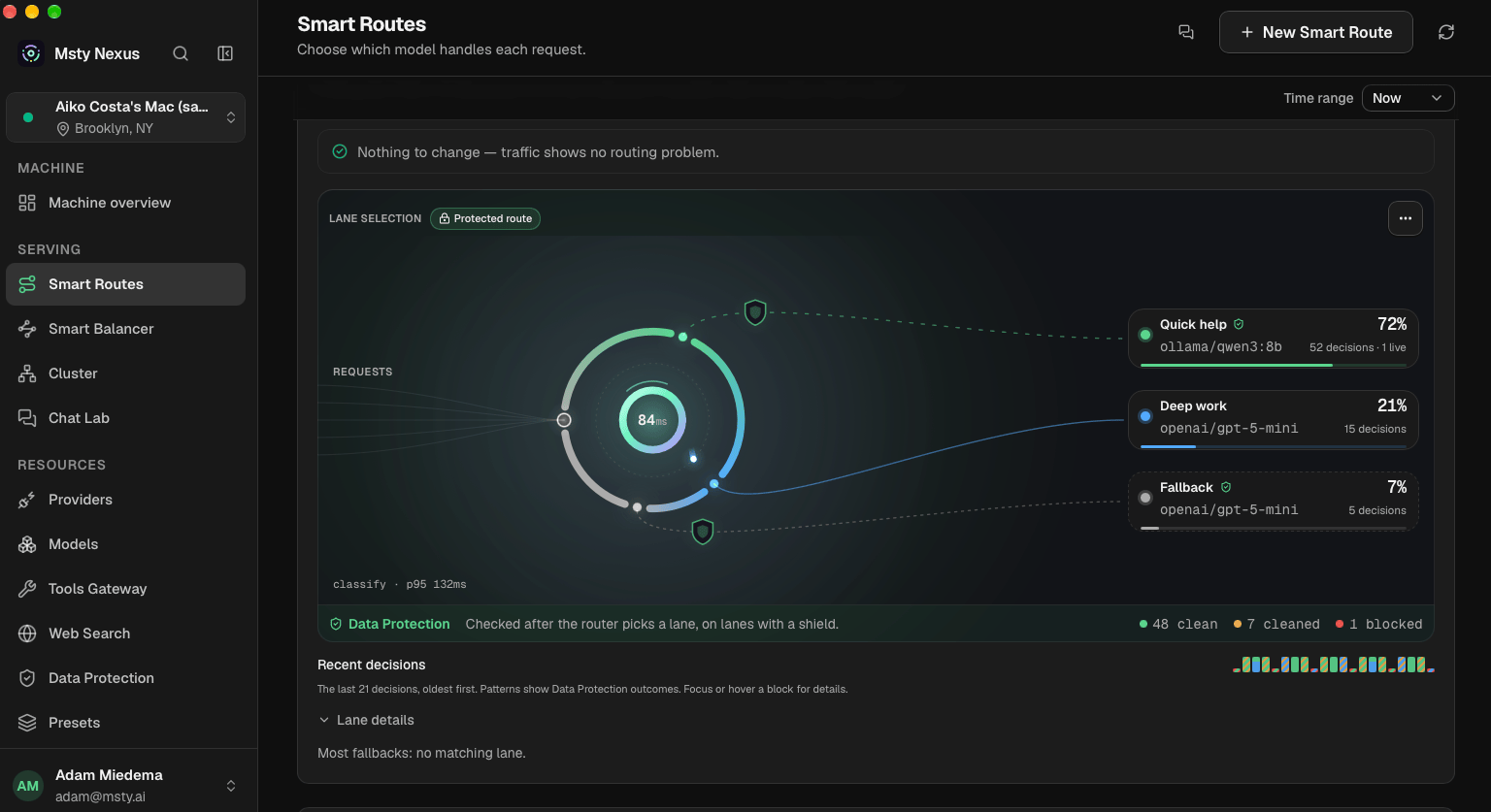
This also changes the cost discussion. Sending every request to the most expensive model is easy, but it is rarely necessary. Smart Routes let the organization reserve expensive capability for work that benefits from it while using local or lower-cost capacity for the rest.
Share The Work Across More Machines
Smart Balancer addresses a different constraint: concurrency.
An administrator can create a pool of shared machines and designate one as the controller. When requests arrive, Nexus sends them to an available machine that can handle the work. One busy device does not have to become the bottleneck for the whole team.
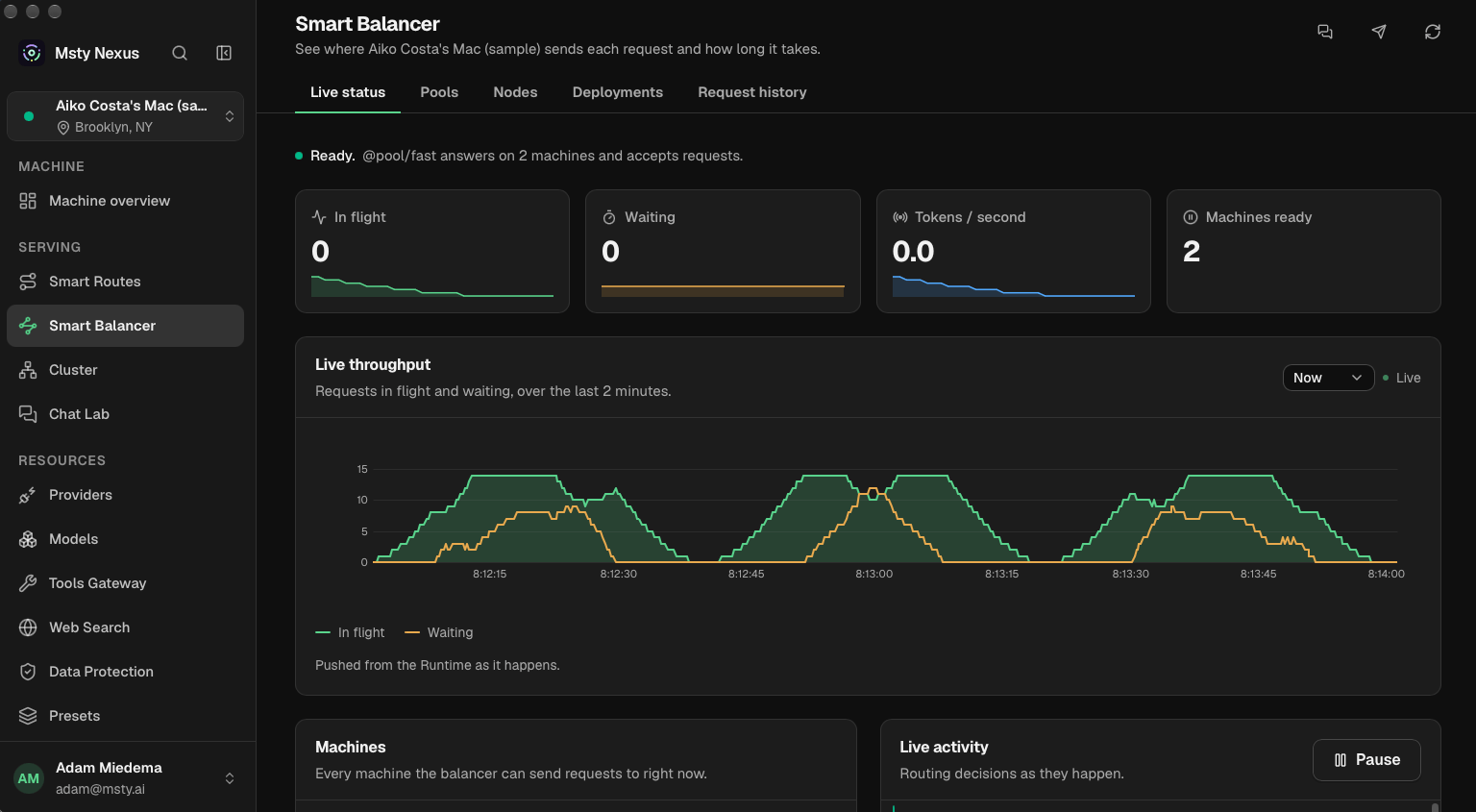
This is how a collection of local machines starts to behave like shared capacity. A company can add hardware as demand grows instead of tying every user to one host.
Run Larger Models Across A Cluster
Some open-weight models are too large for one machine, even when that machine is well equipped.
The video shows four Mac Studio systems configured as a cluster. Nexus checks the Thunderbolt connections, confirms that each system is available in RDMA mode, and shows the topology before a model is loaded.
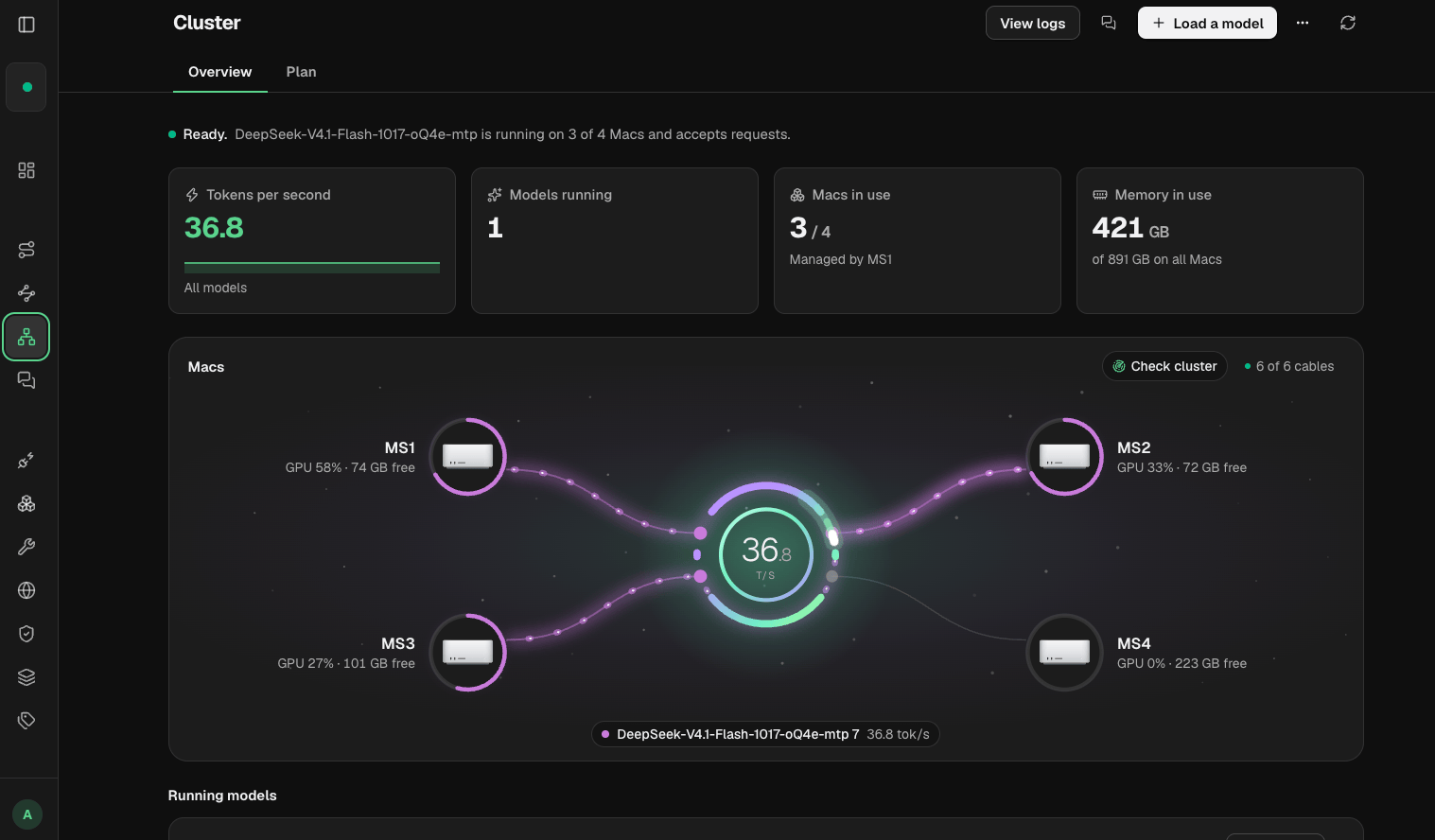
Once connected, the machines can share the memory requirement of a model that would not fit on one device. This makes larger open-weight models available on infrastructure the organization controls.
Cluster setup is handled through a short guided flow. Chat Lab provides a place to test the cluster, individual models, presets, Smart Routes, and Smart Balancer pools before another application depends on them.
See Who Is Using What
Usage becomes more useful when it can be tied back to the way AI is actually deployed.
On an individual machine, Nexus reports activity by provider, model, and connection key. That shows which applications or users are making requests, how many tokens are moving through the gateway, and how the models are performing.
The Enterprise fleet view widens that picture. It shows online model spend, local and online token activity, popular providers and models, machine status, and estimated savings from Smart Routes.
This does not make every local request free or every route optimal. It gives the organization enough visibility to measure the setup it has chosen and adjust it with real usage in view.
Check Policy Across The Fleet
The Teams and Policies view compares the fleet with the policies the organization has defined.
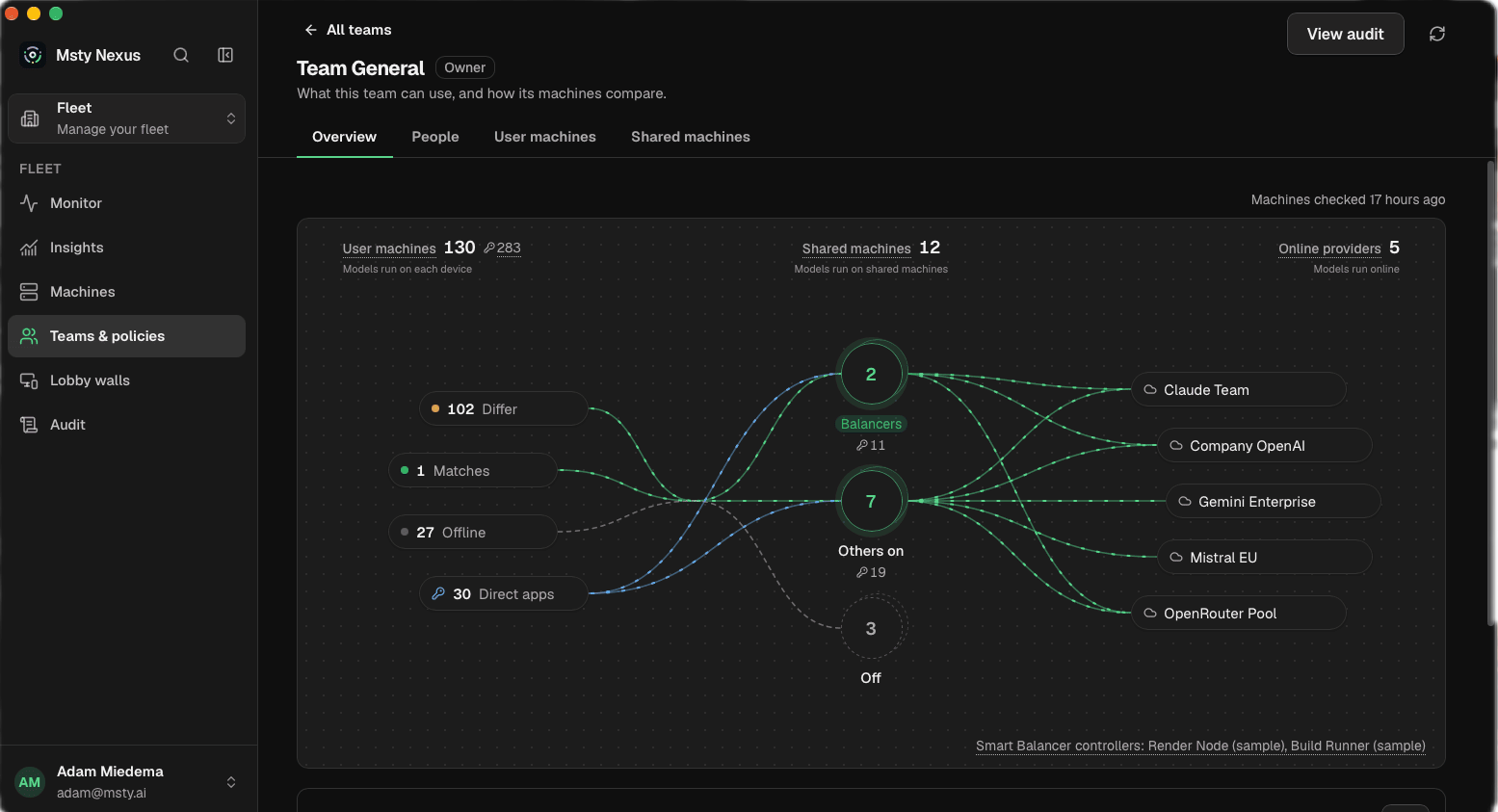
In the walkthrough, online models are available through shared machines rather than directly from user devices. Nexus shows which machines match that policy, which differ, and which are offline or reporting older information. It also maps how user machines connect to shared machines and online providers.
Lobby Wall views turn the main operating metrics into displays suitable for an IT office or operations room. The audit area records configuration changes, including who changed a setting and when.
These are practical controls. A written AI policy can say that provider access must go through an approved gateway. Nexus gives the organization a place to configure that path and check whether the fleet still follows it.
Start With One Machine And Expand From There
Nexus does not require a company to choose local-only or online-only AI.
The free edition provides a way to begin on one machine. Pro adds room for a larger personal or team setup. Enterprise adds the fleet, policy, and organizational controls shown later in the video.
The common piece is the gateway. Applications connect through Nexus, approved models remain available behind it, and the organization can decide where work runs based on its own requirements for capability, privacy, cost, and capacity.
Download Msty Nexus to start with one machine, or talk with us about a governed deployment across your organization.