
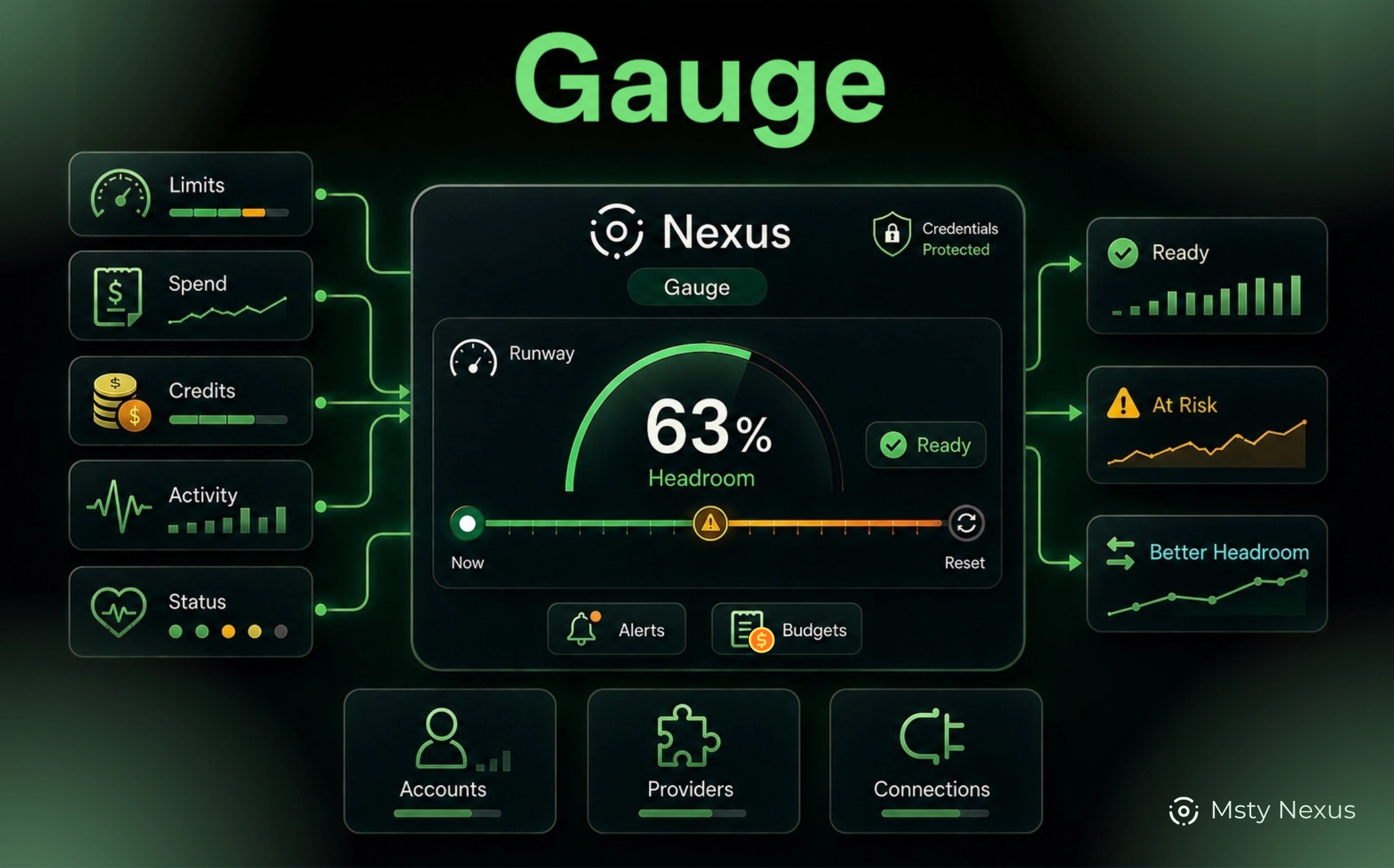
Usage becomes harder to manage when work moves across multiple providers, accounts, and local tools.
Provider billing pages, usage-limit dashboards, local activity, and account-status views often show different parts of the same usage picture. Before Gauge, you had to connect those details yourself just to understand whether you had enough capacity to continue working.
Gauge brings that usage view into Msty Nexus.
Gauge helps you see available usage, reset timing, spend, credits, account status, alerts, budgets, and provider health from one Nexus surface. Instead of discovering a limit or account issue after work slows down, you can see what is available, what needs attention, and which connected account or provider has better headroom.
From Scattered Usage to Capacity Clarity
Usage is simple when everything runs through one account. It becomes harder to manage when your work depends on several providers, local tools, billing pages, and status views.
Without Gauge, you may need to check several places to understand:
- how much usage is still available
- when limits reset
- why spend changed
- whether an account is ready
- whether a provider issue is affecting work
- which connected account or provider has better headroom
Gauge brings quota, spend, activity, credits, and account health into Nexus, so you can understand capacity without piecing those details together each time.
Bringing Limits, Spend, and Health Into One View
Providers report usage in different ways. Some expose limits and reset timing, others report spend or usage history, and some primarily expose account or service health.
Gauge keeps those differences visible by labeling each type of information clearly. A usage limit, credit balance, provider-reported cost, local estimate, and status issue all mean different things, and Gauge brings them together without treating them as interchangeable.
A usage limit, credit balance, provider-reported cost, local estimate, and status issue all mean different things, and Gauge brings them together without treating them as interchangeable.
How Gauge Works
To enable Gauge, open Msty Nexus, go to Settings, and click the button to enable Gauge. After Gauge is enabled, a new Gauge tab appears in the main tabs area.
Gauge monitors only the accounts and providers you enable. Each connection contributes the information it supports, such as limits, spend, credits, usage history, account state, or provider health.
Nexus collects that information, keeps sensitive credentials out of the UI, and organizes it across five areas: Dashboard, Connections, Activity, Budgets, and Alerts.
The Dashboard brings together the most important capacity signals:
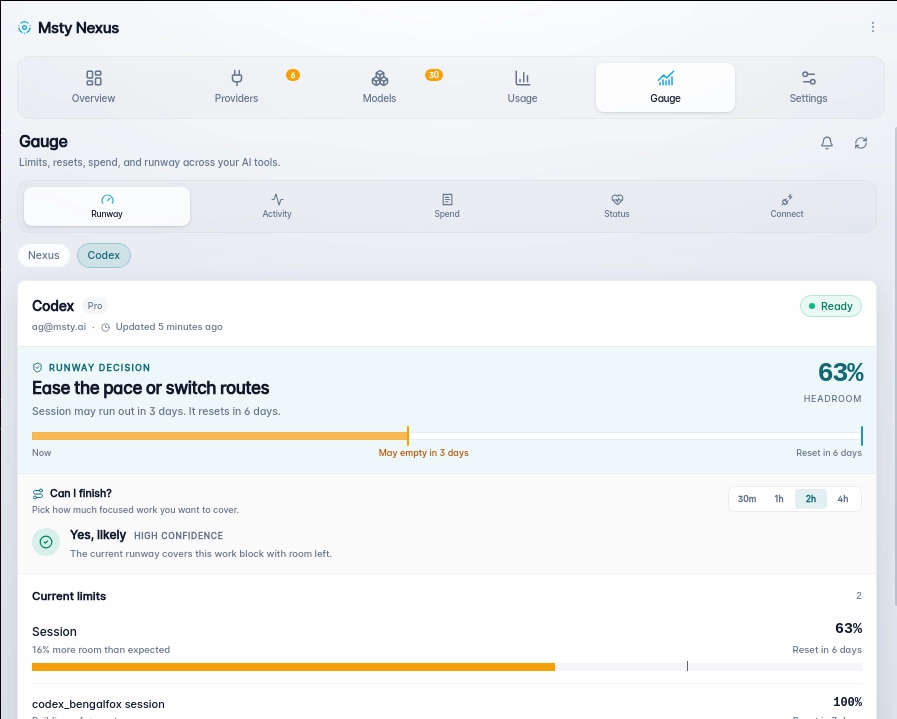
- Runway shows remaining working capacity, reset timing, and whether an account looks ready, at risk, or constrained.
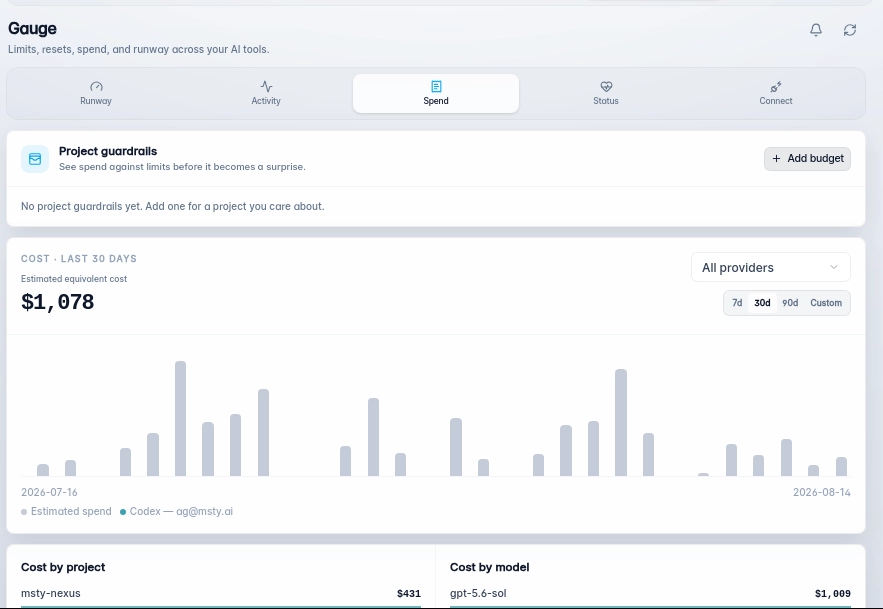
- Spend shows cost with context, keeping provider-reported cost separate from local estimates.
- Status separates provider incidents from account issues such as expired authentication, stale readings, disabled connections, or local refresh failures.
- Recommendations can highlight a connected account or provider with better available headroom. Gauge does not switch accounts or routes automatically.
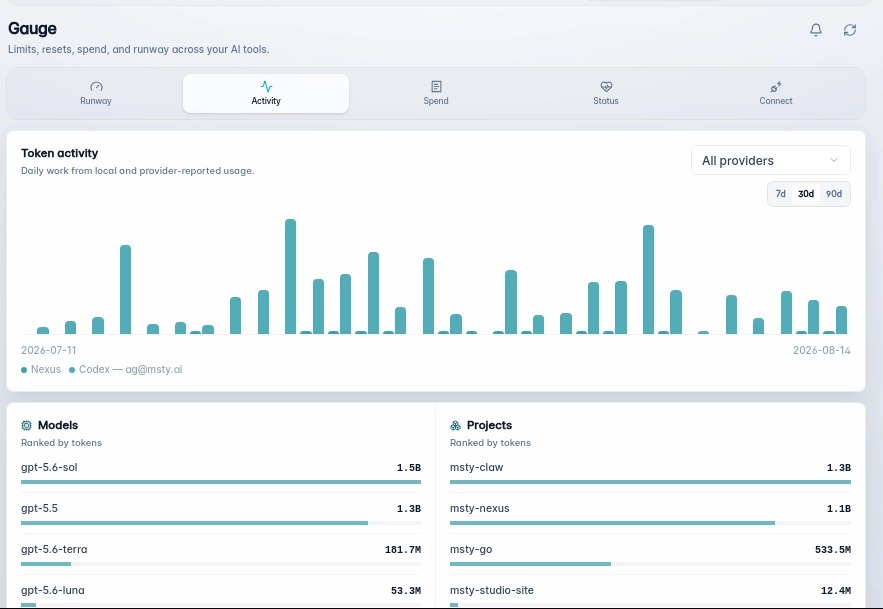
Activity shows usage over time, including request and token patterns where provider data or local Nexus activity supports that history.
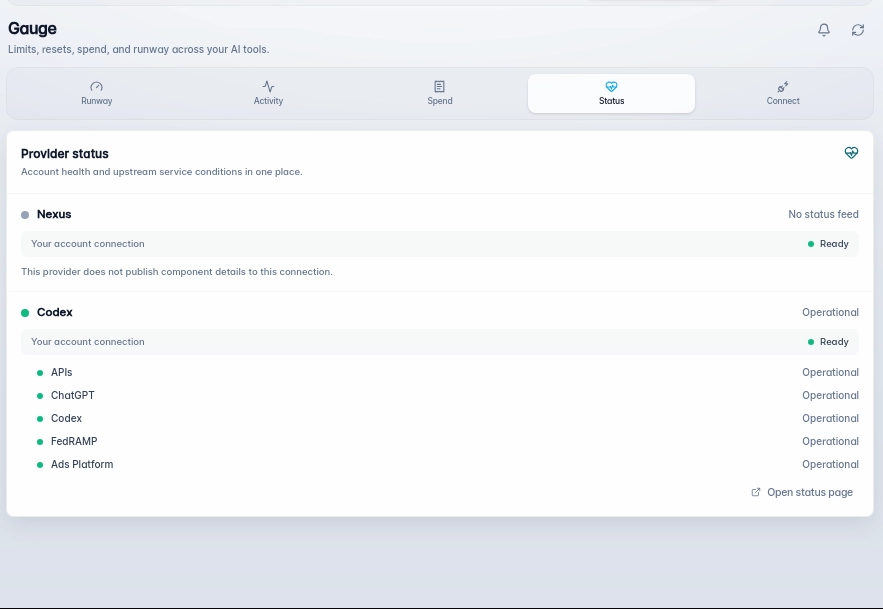
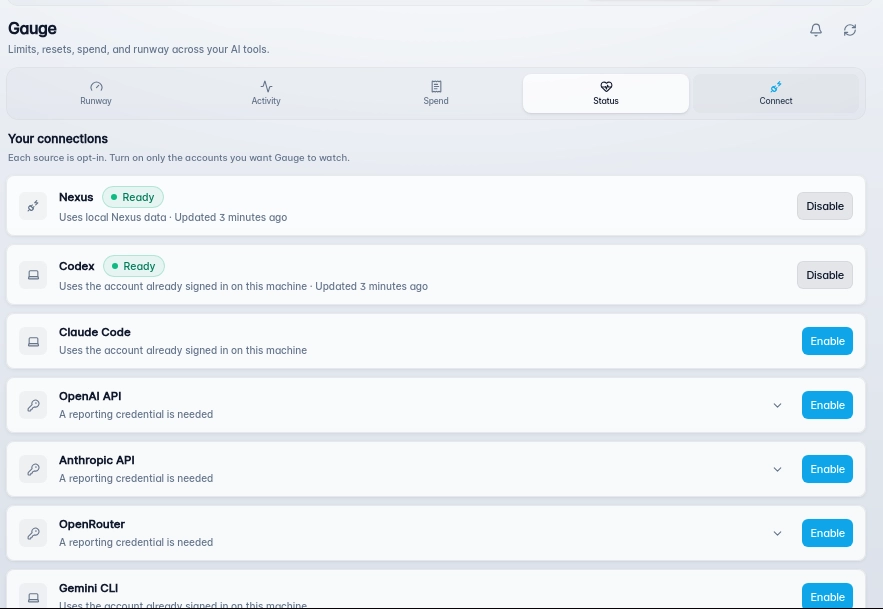
Connections gives you control over what Gauge monitors, including enabled accounts, readiness, authentication state, and the last successful refresh.
Budgets let you define project spend limits and warning thresholds. Alerts can warn about low quota, spend thresholds, reset timing, expiring credits, provider incidents, authentication problems, and healthier available alternatives.
Keeping Cost, Quota, and Status Clear
Gauge labels usage data clearly, especially when it is provider-reported, locally estimated, old, or incomplete.
Provider-reported cost stays separate from local estimates. Older readings show when they were last updated, and missing provider details are marked incomplete instead of being presented as available data.
This gives you a more reliable view of spend, usage limits, account readiness, and provider health without blending confirmed, estimated, and incomplete information.
Alerts and Budgets With Safe Monitoring
Usage risks are easier to manage when you see them before a limit, spend change, or account issue slows down your work.
Gauge alerts can warn about low quota, spend thresholds, reset timing, expiring credits, provider incidents, authentication problems, and healthier connected alternatives. Budgets provide a defined spend limit for a project and period, along with a warning level that shows when spend is getting close to that limit.
Monitoring stays under your control because Gauge only runs when it is enabled. When Gauge is disabled, Nexus does not run provider polling, local scans, status checks, alert evaluation, or other Gauge-specific background work.
Gauge shows safe account summaries instead of credential values. Private credential details remain internal, so usage monitoring does not expose credentials, raw provider responses, or private local paths.
Gauge Gives Nexus a Clearer Way to Manage Usage
We built Gauge because usage should be visible before it becomes a limit, spend, or account problem.
Inside Nexus, Gauge brings usage, spend, limits, credits, account health, provider status, alerts, and budgets into one surface while keeping estimates labeled, monitoring controlled by you, and credentials protected.
You spend less time checking separate dashboards, see quota and budget risks earlier, and choose the next account or provider with better context.